Good communication helps every organization work better. When a company decides to move its email system from an older version to a cloud platform, careful planning matters. A well-planned migration avoids data loss, reduces downtime, and lets employees keep working without problems. Without proper preparation, the process can become stressful and slow.
Before planning to migrate Exchange 2010 to Office 365 step by step, organizations need to understand what changes are required. Each stage of planning affects whether the transfer succeeds. This article explains the main factors every organization should check before starting the migration.
Review the current email setup
The first thing a company should do is study its existing email setup. Knowing how many mailboxes exist, how large they are, and where they are stored makes the migration easier. Some mailboxes may be old or unused and can be removed before the move. Clearing out unnecessary data shrinks the migration and speeds up the process.
It also helps to look at how the current servers perform and how reliable the internet connection is. A slow or unstable network can cause problems during migration. By checking these details early, teams can spot possible risks and plan solutions ahead of time. Keeping records of all current settings makes sure nothing important gets missed later.
Confirm compatibility and system readiness
Before moving to the new system, every organization must confirm that its devices and software can support the change. Computers, browsers, and applications should meet the technical requirements of the new platform. Outdated systems can cause login or connection errors, so updates should be done first.
IT teams should also make sure directory synchronization tools are working correctly. These tools connect the local network with the cloud system. If they are not set up properly, users may struggle to reach their accounts. Checking these technical points early keeps the migration on track and prevents user frustration.
Focus on data security and legal compliance
Keeping company data safe during migration should come first. Every email, contact, and calendar entry must move securely without leaks or corruption. Strong passwords, data encryption, and clear access rules help protect sensitive information during the process.
Organizations that handle private or regulated data must also follow data protection laws. That means setting clear policies for how information is stored, shared, and backed up. Following these rules keeps the company clear of legal trouble and builds trust with clients and employees.
Run a pilot migration and check the results
Testing the process before the full migration is always a good idea. A pilot migration moves a small group of users first. This helps you catch technical problems or missing configurations. Once the pilot users confirm that everything works, the organization can move forward with confidence.
Feedback from these users is valuable. Their comments can help the IT team improve the process and fix issues before the complete migration begins. Testing confirms that mailboxes, contacts, and other data move correctly. This step is essential when planning to migrate Exchange 2010 to Office 365 step by step and helps guarantee a smooth final rollout.
Moving to a new email platform is a big step for any organization. It takes time, planning, and teamwork. Reviewing the current system, checking compatibility, protecting data, preparing employees, and running tests all matter. When companies take these steps seriously, they cut risks and make the process faster and safer. A well-planned migration gives you a reliable, modern communication system that supports growth and efficiency over the long term.
Discovery and workload assessment
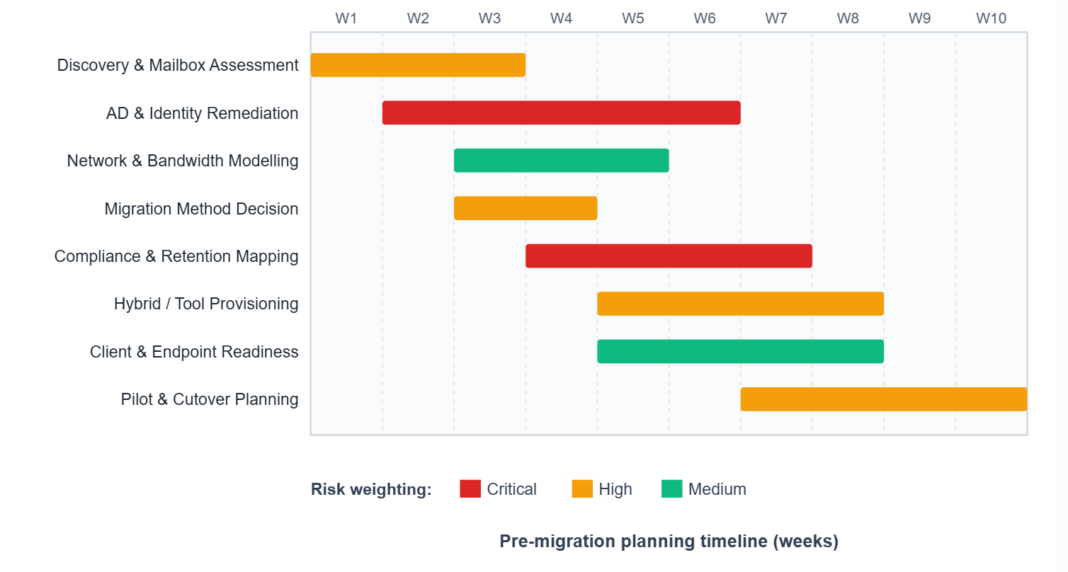
Pre-migration planning starts with a full inventory of what is actually being moved. Exchange 2010 environments typically built up more than a decade of mailbox sprawl, orphaned distribution groups, archive databases, and public folder hierarchies that often outlived their original purpose. Discovery should be quantitative rather than indicative. Averages mislead; distributions inform.
Mailbox inventory and sizing
Get-MailboxStatistics combined with Get-Mailbox produces the foundation dataset: mailbox count, item count, total size, archive size, and last logon date. Distribution skew matters more than mean values. A tenant with 2,000 mailboxes averaging 4 GB but with 50 users above 50 GB will pace its entire migration to those outliers. Shared mailboxes, resource mailboxes (rooms, equipment), and disabled-but-retained mailboxes held for litigation must be counted separately, because each carries its own licensing and configuration implications in Microsoft 365.
Public folders and shared resources
Public folders are the single most common source of post-migration friction. Hierarchies above 1 GB or 100,000 folders need specific batching strategies, and any folder mail-enabled for SMTP intake must be re-pointed before cutover. A meaningful percentage of public folder content is typically stale and becomes migration-ready only after archival or controlled deletion, a finding most organizations would rather make during planning than during a stalled batch.
Identity foundation and directory health
Active Directory hygiene
A directory healthy enough for Exchange 2010 is rarely healthy enough for Microsoft 365 without remediation. IdFix, Microsoft’s free attribute-validation tool, surfaces invalid characters in user attributes, duplicate proxyAddresses, malformed UPNs, and missing mail attributes. Issues caught at this stage are cheap to fix. The same issues caught during Entra ID Connect synchronization generate sync errors that cascade into mailbox provisioning failures and have to be unwound.
Entra ID Connect and UPN alignment
UPN suffixes that do not match a verified domain in Microsoft 365 force users into a .onmicrosoft.com identity, which is awkward to operate and a frequent source of sign-on confusion. Aligning UPNs with primary SMTP addresses before synchronization simplifies authentication and keeps expected Exchange behaviours intact. The choice between password hash sync, pass-through authentication, and federated AD FS should be made and documented early, because reversing it mid-migration is disruptive and visible to end users.
Network capacity and throughput modelling
Microsoft publishes general guidance for migration throughput, but real numbers are routinely lower because of source-side throttling, mailbox database I/O, and contention with normal user traffic. A defensible plan draws its numbers from a measured pilot batch of five to ten representative mailboxes, extrapolated to the full population. As a planning anchor, sustained hybrid throughput typically sits between 0.3 and 1.5 GB per hour per mailbox, with item count weighing more than raw size.
The arithmetic is direct. A 4 TB mailbox population at an average effective rate of 25 GB per hour consumes 160 hours of migration window before contingency. Test bandwidth in the same time slots migrations will actually run, not during planning calls, and lift any proxy or QoS constraints applied to Microsoft 365 endpoints in advance against the published service tag list.
Migration method selection
Exchange 2010 reached end of extended support in October 2020. Classic hybrid mode for Exchange 2010 was deprecated, which changes the decision tree compared with the pre-2020 playbook and is the single factor stakeholders working from older runbooks miss most often.
| Method | Suitable Org Size | Coexistence | Cost Profile | Granularity |
|---|---|---|---|---|
| Cutover | < 2,000 mailboxes | None | Low | All-or-nothing |
| Hybrid via 2016/2019 hop | Any size | Full GAL & free/busy | Medium-High (extra Exchange licence + labour) | Per-mailbox, wave-based |
| Third-party tools (BitTitan, Quest, CodeTwo) | Any size | Limited (delta passes) | Per-mailbox licence + labour | Per-mailbox |
| IMAP migration | Niche / fallback | None | Low | Mail only, no calendar or contacts |
Cutover and the limits of simplicity
Cutover migration suits organizations under about 2,000 mailboxes that can absorb a single transition without coexistence. There is no shared GAL during the cut and no free/busy lookup across environments, but for small estates the operational simplicity is significant. Staged migration is not relevant here; it was designed for Exchange 2003 and 2007 only.
Hybrid considerations after 2010 end of life
A modern hybrid topology now needs at least one Exchange 2016 or 2019 server added to the 2010 organization as a hybrid hop. This adds licensing, hardware, and staff cost, but it gives you a unified GAL, cross-premises free/busy, and mailbox-by-mailbox move flexibility, which is invaluable for organizations migrating in waves over months. You decommission the hop server only after the last mailbox is moved and recipient management is fully transitioned.
Third-party migration tools
Tools such as BitTitan MigrationWiz, Quest On Demand, and CodeTwo offer Exchange 2010 to Microsoft 365 paths without hybrid infrastructure. They typically deliver faster cutovers, granular reporting, and reliable delta passes at a per-mailbox licence cost. Once you price internal labour honestly, the third-party route is often the lowest total-cost option for organizations unwilling to provision a transitional 2016 hop.
Client readiness and compliance
Outlook and endpoint constraints
Outlook 2010 is not supported against Exchange Online and must be replaced or upgraded. Outlook 2013 requires SP1 plus current security updates as the absolute minimum. Mobile clients using Exchange ActiveSync largely transition without intervention, but device certificates and conditional access policies must be designed in parallel rather than retrofitted. Line-of-business applications, MFP scan-to-email devices, and monitoring systems frequently rely on Basic Authentication, which is disabled in Exchange Online and needs to move to OAuth, app passwords, or a replacement.
Compliance, retention, and legal hold
Litigation holds, retention tags, and journaling rules configured in Exchange 2010 do not migrate automatically. Each must be rebuilt as a Microsoft Purview equivalent, and any active legal matter needs documented evidence of unbroken hold across the transition. Organizations under sectoral regulation, such as financial services, healthcare, and public sector, should engage compliance counsel before the migration design is finalized, not after.